TV Advert Analysis
Showing posts with label C. Assignment 3: TV Adverts. Show all posts
Showing posts with label C. Assignment 3: TV Adverts. Show all posts
Wednesday, 6 July 2016

Monday, 4 July 2016
Analysis of Editing Techniques
What is Editing: History and Development

Editing is a combination of different things, from transitions to the making of sequences to continuity. It has been a thing that filmmakers have always developed on to make their films better.
When taking shots, they can be combined to make sequences, thus a type of editing. When making sequences, you need to take multiple shots in order to make it. You combine shots to make everything flow smoothly and make it so that the edit is practically invisible; therefore, a normal scene will take place.

In-camera editing is a technique which practically gets rid of normal editing means, since the cinematographer strictly shoots the sequences in order. It practically gets rid of having to editing outside of filming and the result is in the film already being "edited" when it is developed.
Digital film-making versus film. People would usually expect people to go straight for digital, but normal film is still strong with many directors in Hollywood. Sure, it may take a day to see the results of your filming the previous day and there may be things that you don't like, but you can't replace the feel of film. On the other hand, you can retake a shot when using digital means to film, since you can always check a shot after filming it. If the lighting isn't quite right in a shot, you can retake it. If someone screwed up or the shot isn't quite right, you can always retake it. Its a lot faster than waiting a day and more convenient. Though the fact still remains, both are good yet both have limitations, so the argument is still there.
Transitions
A part of editing includes transitions. In other words, the transitions between either shots or sequences/scenes. Cuts are the most commonly used types of transitions; with a lot of different types of cuts. Such as straight cut. This is the most used type of cut, quickly moving through shots by abruptly ending a shot and abruptly starting another shot. There are also fades, both in and out, where the picture gradually turns into a single colour, mainly back, or when a picture gradually appears on the screen. A dissolve is where a scene changes into another scene, but it looks like it is dissolving into the next scene. And a wipe is...well as the name entails; the scene is wiped away and replaced by another scene.
Visual Analysis: Hans Gruber's Death - Die Hard
Visual Analysis: Hans Gruber's Death - Die Hard
Barely a second into the sequence I chose, there is already an example of a straight cut, abruptly cutting from one shot to the next really quickly, from John McClane right to his wife having a gun pressed to her head. It is also a close up shot on Holly McClane's/Gennero's face, showing off the emotion of fear she has and making everything a lot more tense.
The same transition is used 5 seconds in, focusing in on Hans Gruber as he raises the gun and now points it to John McClane
Continuity
In the film industry a system has been developed called the continuity system, which is basically something that helps the flow and keeps a good understanding of the story running. To make a good continuity system, you need:
Establishing shots - These are usually the first shots of a new scene, made so that the audience can see where action is taking place.
Match cuts on action - This refers to the editing technique where the editor cuts from one shot to another that match's the first shot's action.
180 degree rule - This is a basic guideline to the on-screen spatial relationship between characters and objects within a scene.
Motivated editing - This is a form of editing that motivates what you see or hear. So basically, it means when something is not in frame, you see it appear or hear it in the next cut.
Shot-reverse shot - This is a film technique where one character is shown looking at another and then the other character is shown looking back at the first character.
Identification with main protagonist or other characters:
This is vital in the audience are going to be involved. This involves the use of the following:
Screen time - This is the time allotted to or occupied by a particular subject, actor, etc.
Point of View Shot - This is a short film scene that shows what a character is looking at (represented through the camera.
Close-ups - This is a type of shot which tightly frames a person or object. This is one of the standard shots used regularly with medium shots and long shots.
Reaction shots - This is a portrayal of a person's response to an event or to a statement made by another within a film.
Film & Editing Techniques
Shot variation - This is a technique used in filming to create a sequence of images through editing that makes sense.
Cutting to soundtrack - This is where you edit to the soundtrack, where the pace of the cuts are motivated by how fast the song is.
Montage - This is where you select, edit and piece together separate sections of film to form a continuous sequence.
Multiple Points of View - This refers to the different views of the person on screen and there are many different ones to use.
Providing and withholding information - This is where you try to make the narrative more dramatic by giving the audience more information or taking away information.
Cutaways - This is a shot which is the interruption of continuously filmed action by inserting a view of something else.
Parallel editing/cross-cutting - This is the technique of alternating two or more scenes that often happen simultaneously but in different locations.
Jump-cut - This is an abrupt transition from one scene to another.
Editing rhythm - This is when the relations between shots function to control film pace.
In the film industry a system has been developed called the continuity system, which is basically something that helps the flow and keeps a good understanding of the story running. To make a good continuity system, you need:
Establishing shots - These are usually the first shots of a new scene, made so that the audience can see where action is taking place.
Match cuts on action - This refers to the editing technique where the editor cuts from one shot to another that match's the first shot's action.
180 degree rule - This is a basic guideline to the on-screen spatial relationship between characters and objects within a scene.
Motivated editing - This is a form of editing that motivates what you see or hear. So basically, it means when something is not in frame, you see it appear or hear it in the next cut.
Shot-reverse shot - This is a film technique where one character is shown looking at another and then the other character is shown looking back at the first character.
Identification with main protagonist or other characters:
This is vital in the audience are going to be involved. This involves the use of the following:
Screen time - This is the time allotted to or occupied by a particular subject, actor, etc.
Point of View Shot - This is a short film scene that shows what a character is looking at (represented through the camera.
Close-ups - This is a type of shot which tightly frames a person or object. This is one of the standard shots used regularly with medium shots and long shots.
Reaction shots - This is a portrayal of a person's response to an event or to a statement made by another within a film.
Film & Editing Techniques
Shot variation - This is a technique used in filming to create a sequence of images through editing that makes sense.
Cutting to soundtrack - This is where you edit to the soundtrack, where the pace of the cuts are motivated by how fast the song is.
Montage - This is where you select, edit and piece together separate sections of film to form a continuous sequence.
Multiple Points of View - This refers to the different views of the person on screen and there are many different ones to use.
Providing and withholding information - This is where you try to make the narrative more dramatic by giving the audience more information or taking away information.
Cutaways - This is a shot which is the interruption of continuously filmed action by inserting a view of something else.
Parallel editing/cross-cutting - This is the technique of alternating two or more scenes that often happen simultaneously but in different locations.
Jump-cut - This is an abrupt transition from one scene to another.
Editing rhythm - This is when the relations between shots function to control film pace.
Tuesday, 23 February 2016
PG Tips Advert Evaluation
Brief
We were briefed to re-brand a Unilever product so that it appealed to a different target audience than its existing one and the main goal was to make an advert to do just this. Me and my group chose to re-brand PG tips to appeal to a younger audience than its current one, which is more for middle aged people in all honesty. We chose to do this product based around the idea that Roisin came up with and we agreed to do that one over the other ideas we had, since we believed it was the best. We decided to make it appeal to a younger target audience
The Finished Product & Feedback
Overall, the finished product did get some rather good reviews. People said that it was well done on Youtube and gave us some good critiques to work on. Of course, there were some things we could improve on, but overall, the finished product was rather good. After editing it all together, we were very happy with the final product and although we do agree that at the end, we could have had Faye and Livy drinking the tea together and we could edit a few things a bit better, we were happy with the product overall and people said that it was a rather good advert all in all.
Personal Reflection
Personal Reflection
In my personal view, I would say I am happy with the product. Although I would've liked to help a bit more in the actual editing of the piece, I would say that overall, it was good. I would say I could've been a bit steadier in the actual filming aspect, but other than these two little things, everything turned out rather well in the end and I'm happy with the final product.
Monday, 8 February 2016
TV Advert Pre-Production Paperwork
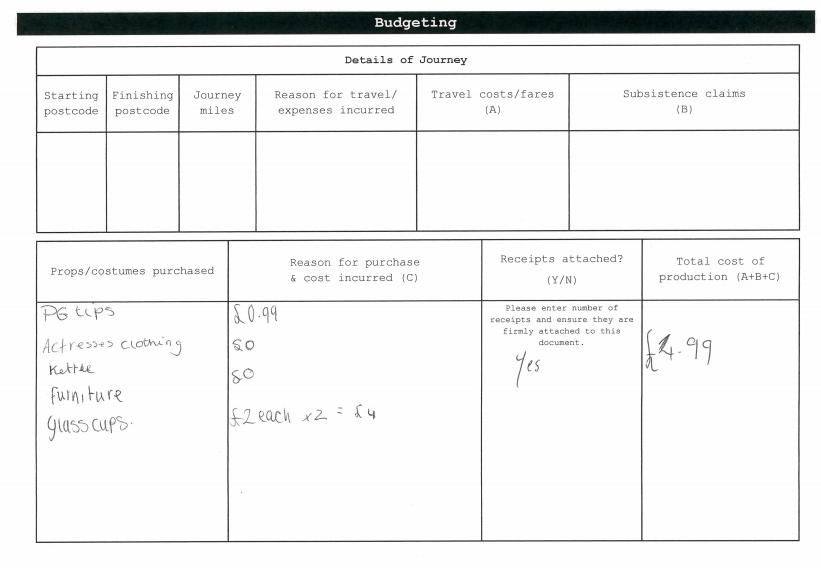
Budgeting Form
Talent Releases


Storyboards


Production Schedule

Receipts


Recce

Location Release

Script

Guide on the Editing Process
For the editing process, there are some things you can and/or need to do. First off, is opening the software that you need to do said editing. When starting up Premiere Pro, you need to do this on a mac after resetting turning on the computer. To do this, you need to start up the mac and hold down alt. It'll soon restart as mac and when it loads up, you log in and click on the Premiere Pro icon. Just wait for it to load up and then you'll be able to start up.

When it loads up, it shall then come up with this screen. When you get into this screen, you move your cursor to the new project icon, clicking on it so you can start up said new project.

Once you start up the new project, you shall be met by this screen. The part on the top left is for when you pick a scene, you can choose to edit certain things. The part on the top right is to play throughout the whole video you're making. The part on the bottom left is where your shots are put, alongside with editing options and where you can put your music once you download. And finally, the part on the bottom right is where your sequence is placed and where you can move everything around and edit things.

Of course, you need your shots in the first place. In order to do this, you need to import your files and get them in there. You go into downloads after downloading your files onto the computer and when finding them, you import them into the project.

When you find them, you highlight said shots and then click import to put them into your project. Then, you can start editing.

Once the shots are imported, the box on the bottom the left will now have the shots in it, allowing you to start using them.

To put the shots onto the bottom right corner, you click on the shot and drag it over to the bottom right so its now in the sequence, so now you can start editing in question.

Now, when you click on a shot, it'll appear in the top left hand box, allowing you to edit the effects and the look of it overall.

When you have the shot up in the top left box, you pick the effect controls on top of the box and this allows you to start altering how it looks overall. The one in the top left is the master controls, affecting the light and shadows; changing this will change how its brightness is and the shadows. The next one along is the red, affecting how much red is in said shot, so you can add and get rid of the amount of red in the shot. Its much the same for the next two, only with green and blue, adjusting how much green and blue is in the shot.

An effect you can do is to make a shot fade to black, or as it is called in the effect, "dip to black". You can type into the search bar after picking the effects tab in the bottom left box. You'll soon find it and then you can drag the effect to the shot that you want, where you want. Then you can alter the dip to black on said sequence.

When you want text in your video, you pick file at the top of the screen, go to new and click on title. That is how you add text into the shot you want.

When you click said new title, this little screen pops up. You can change what you want it to look like and everything, then you just click okay to apply a new title. Then, you start typing out what text you want to come onto the screen.

When you click okay, you then are met with a small screen, where you can add your text anywhere onto your shot and how long it carries on for, what font you want, the size you want it to be and what colour you want it to be as well.

When you save it, it'll turn up as text in your bottom left box. You can then drag it to the appropriate place that you want it to be at, therefore adding into the sequence.


Finally, is exporting the final product. When you want to export your finished product, you go to the file drop down once again and go to export, where you go onto it and click on media.

Final step is simply. Just click on export and wait for a little bit and that's all you have to do. There are more effects you can add of course, yet those you choose by yourself from the effects drop down.

Monday, 11 January 2016
Presentation Techniques
Do's and Don'ts of Pitch and Presentation
There are many different ways in which a presentation can be good or bad. It all depends on your pitch of it and many different contributing factors. Here are some do's and dont's that I have found out about.
Do's
There are many different ways in which a presentation can be good or bad. It all depends on your pitch of it and many different contributing factors. Here are some do's and dont's that I have found out about.
Do's
- You need to think ahead of time what the audience want to hear. They don't want to hear you going on and on about how fantastic an old idea is, they want to hear how your new idea is great and how it can benefit them.
- Keep engaged with your audience. If you're not engaged, your audience will get bored and not listen as well as if you engage them. Keeping eye contact and using body language is a very good way to keep your audience engaged. According to research, around 70% of your communication is through body language, so remember that during your pitch and presentation.
- Speak calmly, clearly and above all, slowly. It never pays to try and cram a long, possibly 30 minute speech into a 10 minute slot. That will not work and your audience will more than likely not understand and take in anything you said.
- Use visual references in your presentation. Visual references are a lot better than a bunch of text and more engaging for the audience to watch than for them to have to read everything that's onscreen.
- Make sure the slides are easy to see, even from the back of the room. Its very easy to forget that you are working close to the screen and are able to see everything clearly, but when you present it, most people, especially people who sit in the back, will not be able to see anything you are presenting.
- For a presentation, use a darker background instead of the normal and generic, light backgrounds. When you have a bright background in a dimly lit room, it will cast light around you and make you seem darker, taking the focus off of you. That's usually considered a good thing, but when doing a pitch, you want people to focus on you mainly, so go for a darker background instead.
- Use variation in styles throughout your presentation. That will make people engage more and take more interest in your presentation. It will also avoid monotony, which no-one likes, lets be honest here.
- Focus on different issues, but never more than 3. I suppose you could say its like a rule of three, but variation does help. Explain the problem and situation, visualize it and explain your solution to it.
- Use spell check! You need to do this. People will notice mistakes and point them out, making it look like you are unprofessional and don't know how to deliver and make a presentation properly.
- Use cue cards to help you out. If you get stuck, you simply use these cards to remind you of where you are and where you're going with the presentation.
- Don't talk for more than 10 minutes, unless you engage your audience somehow beforehand. If you do so, people will probably become bored and not listen to you.
- Do not read your script or the text in your presentation word for word. It will look unprofessional and people will more than likely not listen since they can read it for themselves.
Wednesday, 2 December 2015
Pitch Feedback & Reflections
With everyone in the class, I think everyone did rather well when pitching their ideas for rebranding a Unilever product. Everyone's ideas are very good and well thought out, although there are a few things some people could improve on.
The main thing I noticed when people were giving their pitches was that though many people seemed to keep up eye contact with everyone else, many others seemed to not keep up eye contact too well. Most people seemed to focus on one side of the room mainly, not really looking around to the other side. And a few also kept looking down at their cue cards throughout the entirety of their pitch.
There was also a small issue with a few pitches where a few of them did have an issue with volume. Some but not all were very quiet and there was an issue with clarity. A few people did keep on going "um" and "uh" a bit during their pitch.
However, as I have stated before, everyone did rather well and their ideas are all good and though sometimes I didn't understand what some people were saying, they were all good and seemed to really do their research.
The main thing I noticed when people were giving their pitches was that though many people seemed to keep up eye contact with everyone else, many others seemed to not keep up eye contact too well. Most people seemed to focus on one side of the room mainly, not really looking around to the other side. And a few also kept looking down at their cue cards throughout the entirety of their pitch.
There was also a small issue with a few pitches where a few of them did have an issue with volume. Some but not all were very quiet and there was an issue with clarity. A few people did keep on going "um" and "uh" a bit during their pitch.
However, as I have stated before, everyone did rather well and their ideas are all good and though sometimes I didn't understand what some people were saying, they were all good and seemed to really do their research.
Thursday, 26 November 2015
Thursday, 12 November 2015
Subscribe to:
Comments (Atom)